
Help › iPhone › Common Questions
Forward iPhone Texts to Another Phone Number
Out of the box, PhoneLeash on iPhone forwards your texts to email. With a one-time setup — about a minute — you can also relay those same texts to a second phone as SMS. Here's how.
Before you start: make sure PhoneLeash is already installed and forwarding to your email. If you haven't done that yet, follow the iPhone Install Guide first — this guide picks up right where that one leaves off.
Step-by-Step
Tap any screenshot to enlarge it. Use the arrows to move through the eight steps.
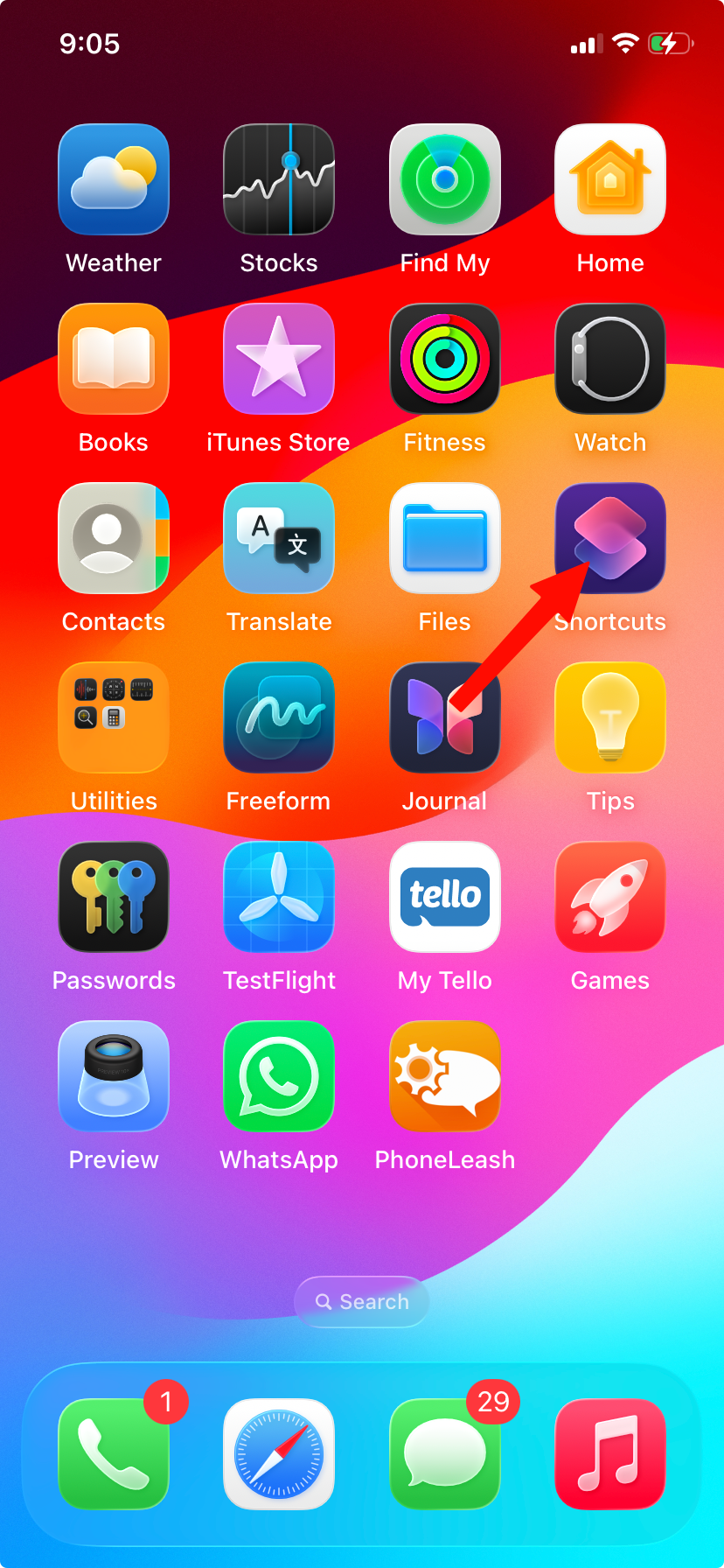
Open the Shortcuts App
On your iPhone, open the Shortcuts app. This is the same app you used when you first installed PhoneLeash.
Step 1 of 8
⚠️ Don't forward to your own number. The destination must be a different phone. If you enter this same iPhone's number, every forwarded text arrives as a new incoming message — which re-triggers the automation and forwards again, creating an endless loop of texts to yourself. Always send to a second, separate phone.
What the Second Phone Receives
PhoneLeash sends a clean, single-line summary so the person (or you) on the other phone can see at a glance who texted and what they said:
The format is Sender name : number | message. If the sender isn't in your contacts, the name is omitted and you just see number | message.
Native Phone-to-Phone Forwarding on Android
If full-featured forwarding to another phone — including attachments, group texts, and replies — is important to you, PhoneLeash for Android forwards texts to another phone number as SMS with no extra setup, because Android allows apps to send SMS directly.
Stuck on any step? Get in touch and we'll walk you through it.