
Help › iPhone › Troubleshooting
How to Send the Log File
Privacy note: please don't send logs unless support@phone-leash.com specifically asks you to. Logs contain private information, so we only request them when absolutely necessary.
PhoneLeash on iPhone keeps a small diagnostic log that helps us pinpoint forwarding problems. When support asks for it, you can send it straight from the app in a few taps.
Steps
- Open the PhoneLeash app.
- At the very bottom of the screen, next to the version and trial info, tap Send Logs.
- PhoneLeash opens a pre-addressed email to support@phone-leash.com with the log already attached.
- In the space marked “Describe your problem in the space below,” add a brief explanation of what you're seeing. Leave the details below it untouched — they help us diagnose the issue.
- Tap send.
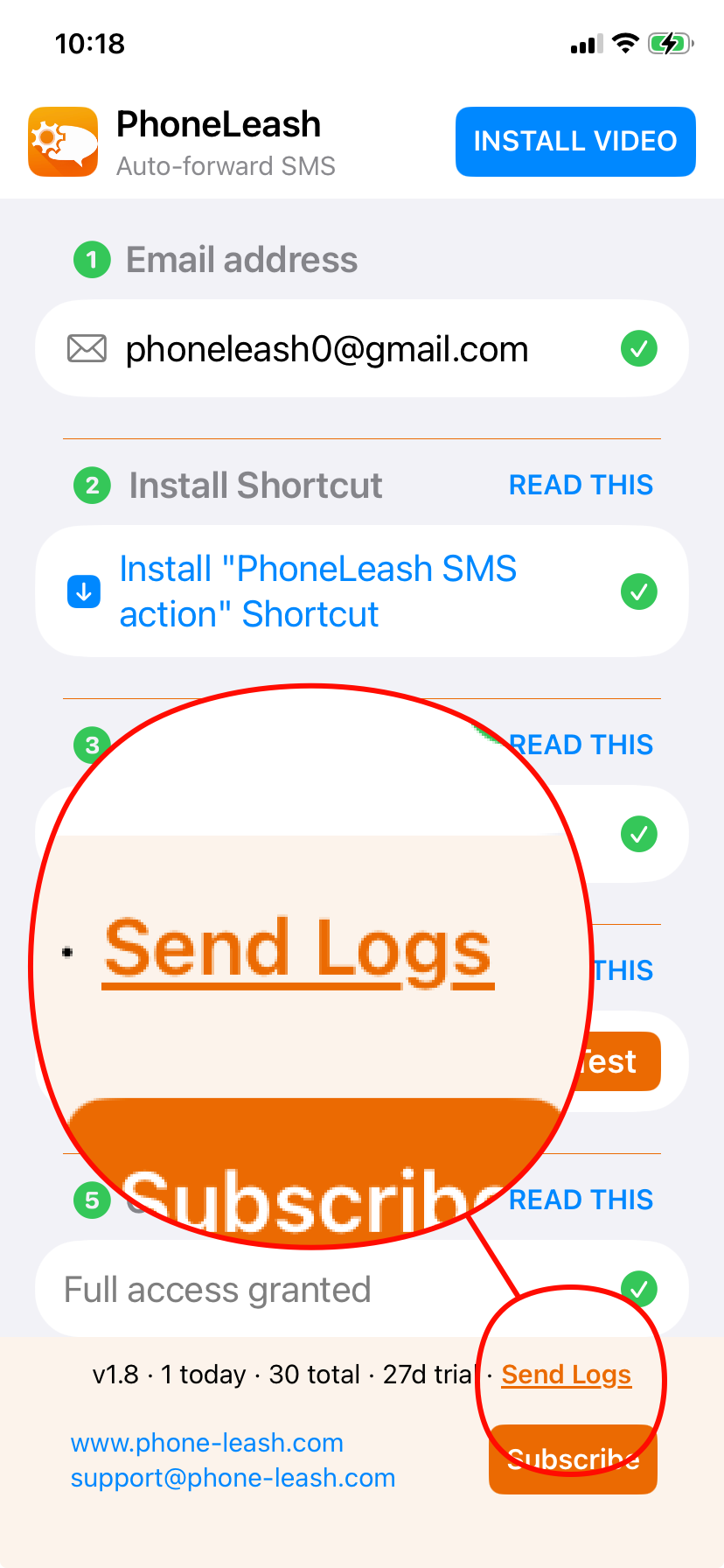
If Nothing Happens When You Tap Send Logs
The in-app email composer needs the iPhone Mail app to have at least one account set up. If Mail isn't configured, PhoneLeash falls back to the iOS share sheet instead — just choose any app you use for email (Gmail, Outlook, etc.) and send the message, with its attachment, to support@phone-leash.com.