
How to Forward WhatsApp Messages to Email or SMS (Android, 2026)
You can forward WhatsApp messages to your email inbox — or, if you prefer, to a second phone as SMS — automatically and in real time using PhoneLeash on Android. Direct messages, group chats, reactions, and even incoming voice and video call notifications are captured through Android's Notification Listener and delivered within seconds. No WhatsApp API access, no account modification, no tinkering. Forwarding runs on Android — including when the Android is a linked device on a WhatsApp account you also use elsewhere, such as on an iPhone (covered near the end).
This guide walks through what PhoneLeash forwards, how to choose between email and SMS as your destination, how replies work (and the one quirk you need to know about), how forwarding works from a linked Android device, and how to set everything up in about two minutes.
PhoneLeash is not affiliated with, endorsed by, or connected to WhatsApp Inc. or Meta Platforms, Inc. WhatsApp is a registered trademark of WhatsApp LLC.
Why forward WhatsApp at all?
WhatsApp has over 2 billion active users worldwide. In many countries it has replaced SMS as the default communication channel for both personal and business conversations — which means a lot of important information lives inside an app that was designed for casual messaging, not record-keeping. Common reasons people want WhatsApp content somewhere else:
- Searchable archive. Email was built for search; WhatsApp was not. Once messages land in Gmail or Outlook you can find them by keyword, date, or sender in seconds.
- Business record-keeping and compliance. Healthcare, finance, legal, and real estate often have documentation requirements. Email archives meet them; WhatsApp's native history does not.
- Multi-device access without WhatsApp Web. WhatsApp Web requires your phone to be online and tied to WhatsApp's interface. Forwarding to email or a second phone gives you read access from any device, in any inbox or messaging app.
- Two-phone workflows. Using a work phone for WhatsApp Business but want pings on your personal phone? Forward to your personal number as SMS.
- Oversight. Parents and managers of company-owned devices have legitimate reasons to forward WhatsApp activity to a centralized destination for review.
How does it work?
PhoneLeash does not use WhatsApp's API or modify WhatsApp in any way. It uses Android's built-in Notification Listener service — the same system mechanism that lets smartwatches and accessibility tools mirror notifications.
When WhatsApp posts a notification (a new message, a reaction, an incoming call), PhoneLeash reads the notification content and forwards it to your destination. The whole round-trip takes a few seconds.
What gets forwarded
- Direct messages — sender's name and the message text.
- Group chat messages — group name plus the individual sender, so you know who said what in which group.
- Reactions — when someone reacts to one of your messages with an emoji, you get a forwarded note showing the reaction and the message it was applied to.
- Incoming voice and video call notifications — you do not get the audio, but you get a forwarded heads-up that Mom tried to video call you while you were in a meeting.
- Photo and video captions — the caption text is forwarded along with an attachment indicator.
- WhatsApp Business — same Android notification system, same forwarding behavior.
What does not get forwarded
- The attachment files themselves — photos, videos, voice notes, documents, and stickers are not present in Android notifications, so they cannot be forwarded. You see an indicator that an attachment was included; the file stays on your phone.
- Outgoing messages — only incoming notifications are visible to PhoneLeash.
- Existing message history — PhoneLeash forwards messages from the moment you turn it on. It does not retroactively export your prior conversations.
- Foreground messages — if WhatsApp is open and on screen when a message arrives, no notification is posted, so PhoneLeash never sees it. (Switch away from WhatsApp and the next message generates a normal notification.)
What forwarded WhatsApp looks like
Here are the four flavors of WhatsApp content you'll see in your inbox (or as SMS, with the same wording, just shorter formatting). All names below are illustrative.
A photo with caption
The 📷 camera emoji tells you the original message included a photo. The caption is what Jessica typed alongside it. The photo itself stays on her phone (and in your WhatsApp app, if you check there) — only the text reaches your inbox.
A reaction
You see both the emoji Ryan reacted with and the original message it was applied to, so the reaction is in context.
An incoming video call
Voice calls forward the same way with an audio-call marker. PhoneLeash cannot send the audio or video itself, but knowing a call came in is often what you actually need.
Replying — the one thing to know
You can reply to a forwarded WhatsApp email. Your reply goes out as an SMS, not as a WhatsApp message. PhoneLeash adds a clear footer to every forwarded WhatsApp email so you do not forget:
Why? There is no public WhatsApp API for individuals to send messages on their own behalf. The Business API exists, but it requires Facebook Business Manager approval, a dedicated phone number, and ongoing costs that make it impractical for personal use.
Heads-up about the recipient experience. When you reply, the original WhatsApp sender will receive your response as an SMS from your phone number. They may not realize it is a reply to their WhatsApp message. If that ambiguity matters, lead your reply with something like "Re: your WhatsApp —" so they get the context.
Setup in three steps
Setup takes about two minutes. No technical expertise required.
1. Install PhoneLeash and complete the setup wizard
Download PhoneLeash from the Google Play Store. Open the app and follow the wizard — it asks for your destination (email or phone), tests delivery, and walks you through the standard SMS-forwarding permissions.
2. Turn on WhatsApp forwarding in the wizard
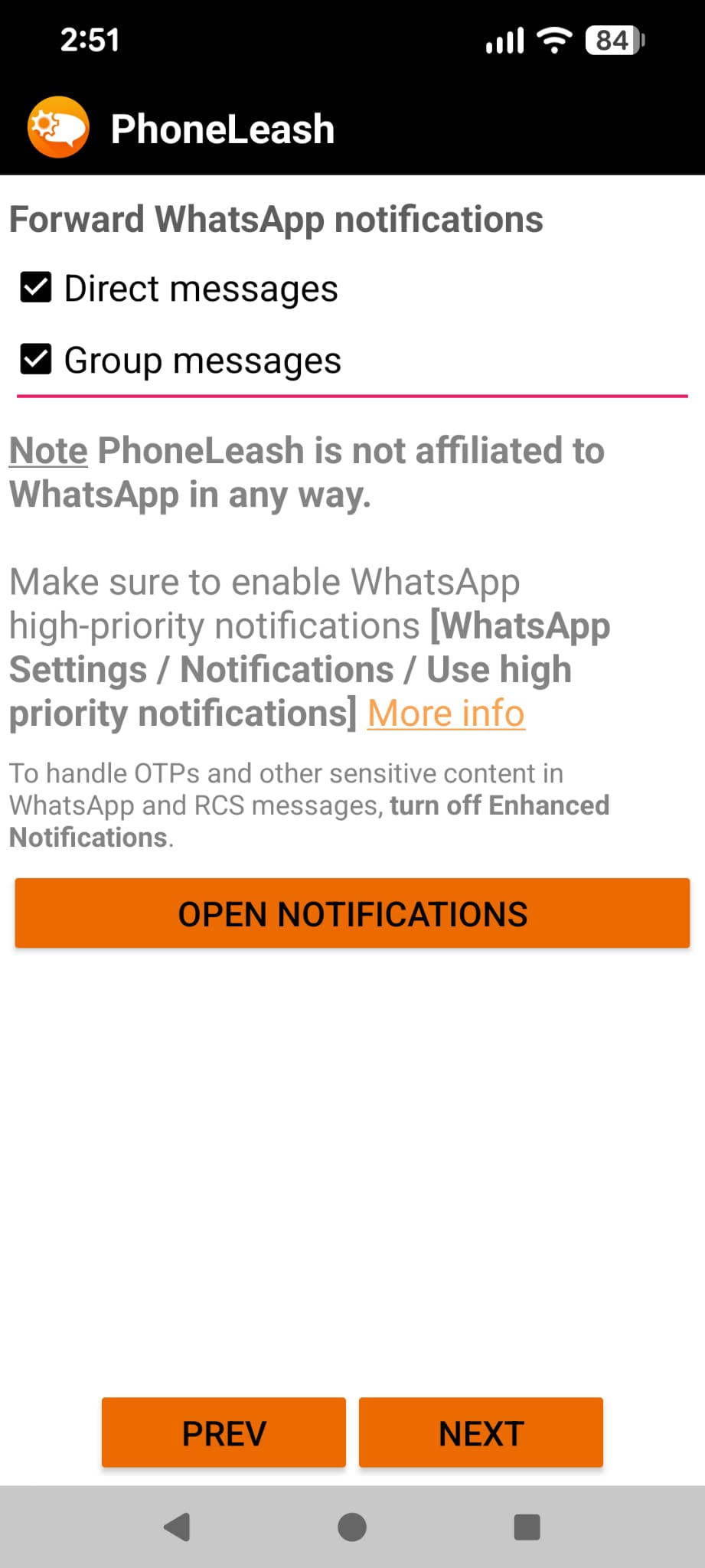
When you reach the WhatsApp screen, tick Direct messages, Group messages, or both. Tap Open Notifications and grant PhoneLeash the Notification Access permission Android prompts you for — this is the same permission smartwatches use, and it is what makes WhatsApp forwarding possible. The help article on forwarding WhatsApp messages covers what works and what does not in more depth, and the permissions guide explains why each Android permission is needed.
3. Enable WhatsApp's high-priority notifications
This is a one-time tweak inside the WhatsApp app itself. Open WhatsApp → Settings → Notifications and turn on Use high priority notifications. Without this, Android may suppress notifications when the phone is dozing, and PhoneLeash will not see them.
That is it. From now on every WhatsApp message, reaction, and call notification arrives at your destination automatically.
OTP tip: If you forward OTP codes that arrive over WhatsApp or RCS, also turn off Enhanced Notifications in WhatsApp's notification settings. Enhanced Notifications can hide message content from the system notification, which means PhoneLeash cannot read the OTP either.
Limitations to know about
Transparency matters. Here is an honest summary:
- Forwarding runs on Android. iOS does not provide a Notification Listener API, so WhatsApp forwarding cannot run on the iPhone itself. If your WhatsApp account is also linked to an Android device, PhoneLeash on that Android forwards it — see Linked devices below. (PhoneLeash on iPhone can still forward SMS and iMessage to email using Apple Shortcuts.)
- Text content only. Photos, videos, voice notes, documents, and stickers themselves are not forwarded — only an indicator that an attachment was included, plus any caption text.
- Foreground blind spot. If WhatsApp is open and on screen, no notification is posted, so PhoneLeash does not see those messages.
- Replies go as SMS, not WhatsApp. See the Replies section above.
- Notification Listener is a sensitive permission. It gives an app access to your notification content. Only grant it to apps you trust.
Forwarding from a linked Android device
WhatsApp lets you use one account from several places at once — a laptop, a tablet, WhatsApp Web, or a second phone. These are called linked devices, and they all see the same conversations. People link devices for everyday convenience, not for forwarding — but it's worth knowing how PhoneLeash behaves when one of those linked devices happens to be an Android phone.
The short version: PhoneLeash forwards WhatsApp on Android whether that Android is the phone where your account is registered or a linked (companion) device. A linked Android receives every message the account gets and posts the same notifications, so PhoneLeash reads and forwards them exactly as it would on a primary phone.
That's the answer for people whose main WhatsApp lives on an iPhone. iOS doesn't let any app read WhatsApp's notifications, so PhoneLeash can't forward WhatsApp on the iPhone itself — but if the same account is also linked to an Android phone, that Android handles the forwarding. Your iPhone stays your primary device and nothing about your account changes.
If your account is linked to an Android phone
On the Android side, setup is the same as the three steps above — install PhoneLeash, pick your email or destination number, and grant Notification Access. A few linked-device details worth knowing:
- It's the same account, not a copy. Every message that reaches your iPhone also reaches the linked Android, so PhoneLeash sees and forwards it.
- A linked device doesn't need its own SIM or number. It runs on your existing account over Wi-Fi (or mobile data), and stays connected on its own — see WhatsApp's How to link a device if you haven't set the link up yet.
- Keep using your primary phone at least once every couple of weeks. WhatsApp logs out linked devices if the primary phone goes unused for about 14 days.
- Everything else in this article still applies — the same message types are forwarded, replies still go out as SMS, and attachment files still stay on the phone.
What about forwarding SMS into WhatsApp?
A surprising number of people search for the reverse: piping SMS into WhatsApp. Short answer: there is no reliable way to do this for individuals. WhatsApp does not accept incoming messages from external sources through any public API available to non-business accounts. Apps that claim to do it tend to rely on accessibility services that break with updates and violate WhatsApp's terms of service.
The practical alternative is the one this article describes — forward your SMS and your WhatsApp to a single email inbox or to a second phone. You get all your messaging in one place without trying to fight WhatsApp's API restrictions.
Get started
Download PhoneLeash from Google Play and pick email or a phone number as your destination during setup. WhatsApp forwarding is included in the 30-day free trial, and in the personal plan afterward (also covered by the commercial plan for business users). If Play Store ever shows the "this app isn't available for your device" error during install, see the older Android version article for fixes.