
PhoneLeash on iPhone: what it does (and why it's a bit different)
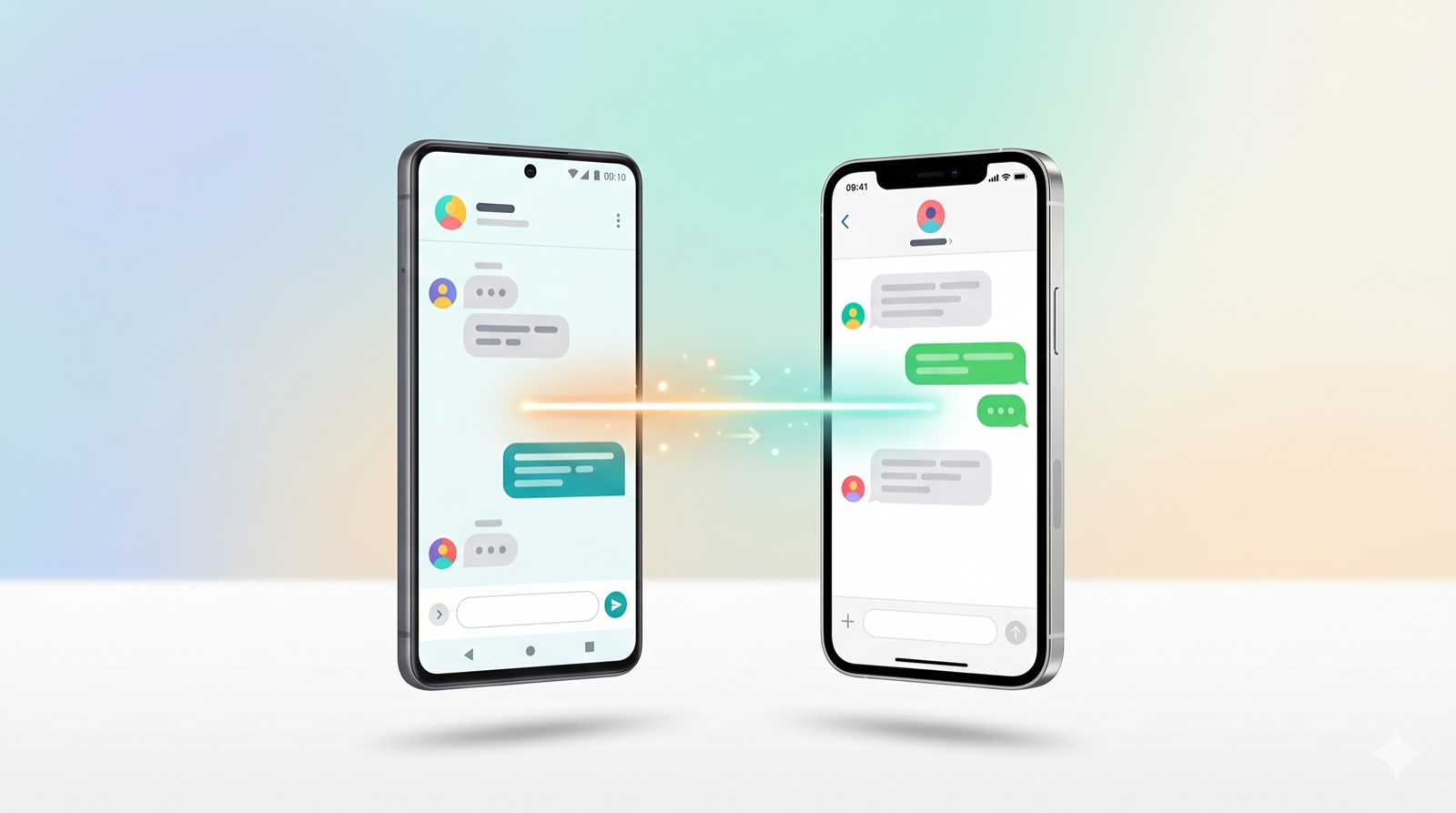
Welcome. If you just installed PhoneLeash on your iPhone — or you're thinking about it — this is a quick orientation to what it does, how the setup works, and what to expect day-to-day.
What it does, in one line
PhoneLeash forwards your incoming iPhone text messages — iMessage, SMS, RCS — to your email, automatically and within seconds.
That's the whole product. Everything below is detail.
What you'll see, day-to-day
Once it's set up, you can forget about it. New texts land in your inbox alongside everything else — with:
- the sender's name (resolved from your Contacts) and phone number
- the full message body
- a timestamp
You read them like any other email. You search them like any other email. You can star them, file them, forward them to a colleague — your inbox is just another place your texts now live.
The bit that's a little different: setup lives in three places
This is the part worth understanding up front, because it's the one thing about iPhone PhoneLeash that's not quite like installing an ordinary app.
On iPhone, the system that reacts to an incoming text message is called Shortcuts. It's an Apple framework, separate from any third-party app. So for PhoneLeash to forward your texts, three pieces have to be in place:
- The PhoneLeash app. Where you sign in, set your forwarding email, and manage your subscription. (You're already here.)
- A Shortcut. A small recipe that says "take this text and send it to PhoneLeash's server for forwarding." PhoneLeash ships this pre-built — one tap inside the app and it's installed.
- An Automation. The trigger that says "run that Shortcut every time a text arrives." This part lives in Apple's Shortcuts app (Home Screen → Shortcuts → Automations tab), because that's where iPhone keeps automations. PhoneLeash sets it up for you and walks you through the one tap you need to make ("Run Immediately" — pick that one).
If the setup ever feels like it's spilling across two apps, that's why. It only happens once, and from that point on, PhoneLeash runs invisibly in the background. There's nothing to launch, nothing to check, nothing to remember.
What's included on iPhone
- SMS forwarding — green-bubble and RCS messages from Android, businesses, banks, OTP codes, anything sent as a regular text.
- iMessage forwarding — blue-bubble messages too.
- Sender's contact name, not just the phone number — looked up strictly on your phone, from your own Contacts. PhoneLeash never stores them by the way. (If you skipped the Contacts permission at setup, you'll see only the phone number; grant access in Settings → PhoneLeash to get names.)
- Emails that thread properly. When the sender resolves to a contact name, PhoneLeash uses that name in the email's subject line, so Gmail (and similar) group every text from the same person into a single conversation — not a fresh thread per message.
- Forwarding to any email — Gmail, Outlook, iCloud, your work address, a custom domain. PhoneLeash doesn't care.
- An "attachment was sent" heads-up. If a text arrives with a picture, video, or other attachment, PhoneLeash can't include the file itself in the email — but you'll see an
[Attachment not forwarded]note right under the message body so you know to look at your phone. You don't silently miss anything. - Reply directly when the sender is an email address. Most iMessages come from a phone number, but some come from an email address (typical when someone texts you from a Mac). For those, PhoneLeash sets the email's reply-to so you can reply straight from your inbox and it lands with the sender. Whenever the message originated as email, you can keep the conversation in email.
- Battery-friendly — the Shortcut only runs when a text actually arrives. Nothing polls in the background.
What's not included (please read this before you subscribe)
Being upfront about this matters more than the feature list:
- Reply from email won't work (mostly). For texts that came from a phone number, you can't reply — iOS doesn't expose a way for third-party apps to send SMS on your behalf. The one exception is the email-sender case described above, but even that reply goes to the sender's email, not their phone. If you're coming from PhoneLeash for Android, this is a very important distinction.
- Attachments themselves don't come through. You'll see the message text and a heads-up that something was attached, but the picture or video stays on the phone. It's another big difference from PhoneLeash for Android.
- Call notifications are not part of the iPhone version. No "you got a call" or "you missed a call" emails on iOS.
What's coming next
The main pending addition is OTP detection — automatically tagging messages that look like one-time codes so they're easy to filter, label, or pin in your inbox. Already on the Android version; coming to iPhone soon.
Also coming soon: Forwarding to another phone number.
Pricing
PhoneLeash starts with a free trial — no credit card. After the trial, a subscription kicks in, billed through your Apple ID. You can cancel anytime in Settings → Apple ID → Subscriptions, same as any other App Store subscription.
If something isn't working
Three things to check, in order:
- Check the install steps. Walk through the install page — the screenshots and the 60-second video show the exact steps.
- The Automation is set to "Run Immediately." Open the Shortcuts app → Automations tab → tap the PhoneLeash one. If it's set to "Ask Before Running," nothing forwards until you tap a confirmation each time, which defeats the point.
- The Shortcut got installed. Inside the PhoneLeash app, the install button should show as already done. If not, tap it again.
If you've done all three and texts still aren't showing up, email us at support@phone-leash.com and I'll dig in.
Why we built it
PhoneLeash has been around since 2011. For almost all of those 15 years, the single most common email arriving at support has been some variant of "is there an iPhone version yet?"
For most of that time, the honest answer was no — the iPhone didn't have a way for a third-party app to reach incoming messages. Apple's Shortcuts framework changed that, and once the pieces were in place, it was finally possible to do an iPhone version that worked the way our Android users had been used to (within the limits described above).
It took a while to ship. To everyone who wrote in over the years asking for this: thanks for waiting. Welcome aboard.
— PL Dev