
Help › Android › Install and Setup
Add phone-leash.com as a Safe Sender
Email providers sometimes send automated messages to your spam folder. Adding phone-leash.com to your safe senders list ensures forwarded texts always reach your inbox.
Gmail
- Open any email from @phone-leash.com (check your spam folder if you don't see one in your inbox).
- Click the ⋮ (three-dot menu) in the top-right corner of the message.
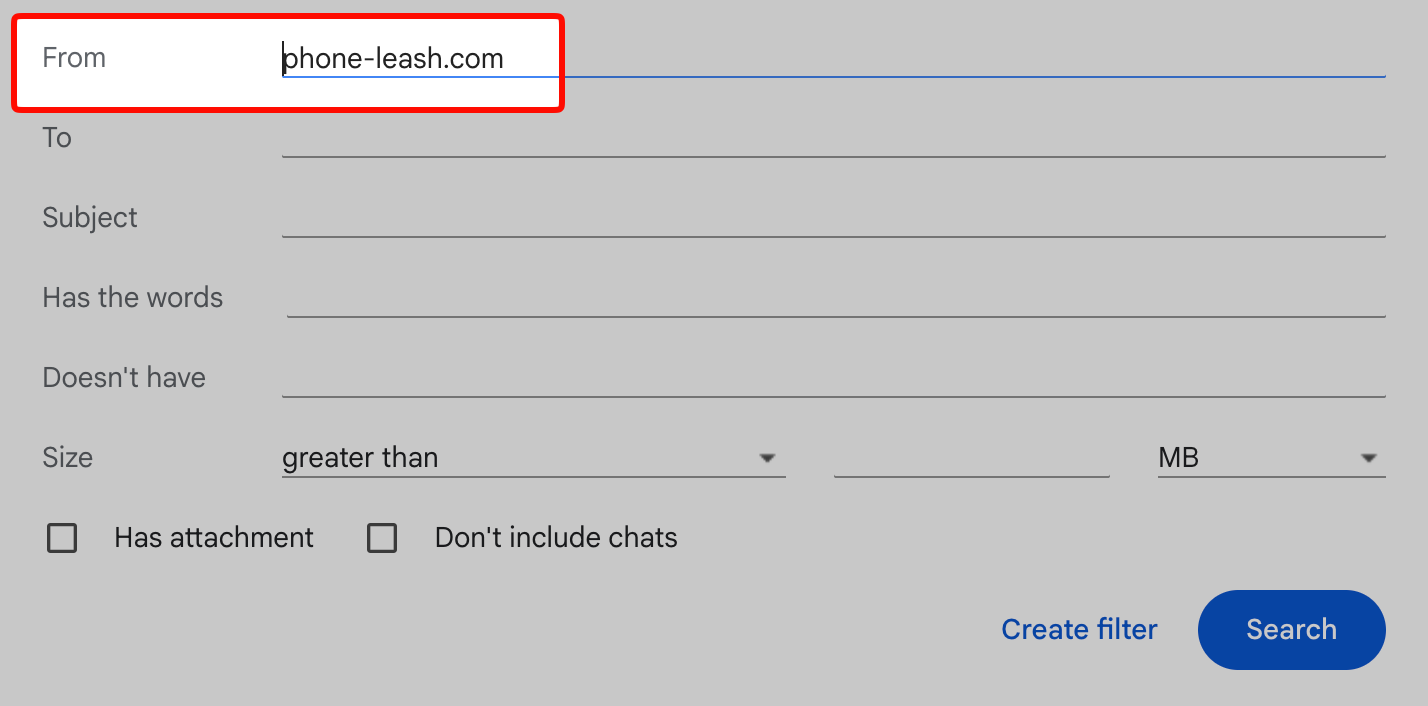
- Select Filter messages like these. Gmail pre-fills the From field for you.
- Click Create filter.
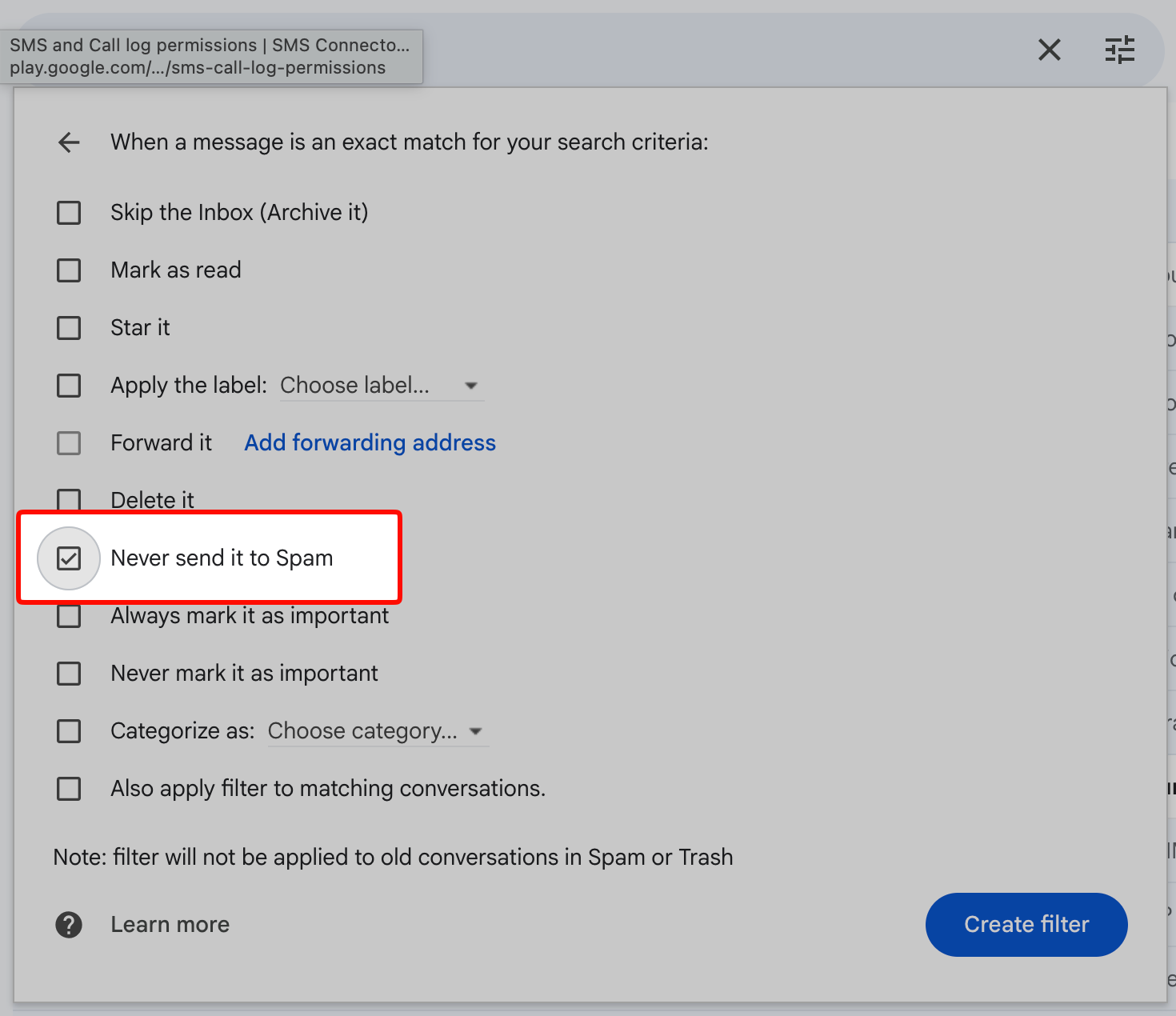
- Check Never send it to Spam.
- Click Create filter again to save.
Tip: If the first phone-leash.com email landed in spam, open it and click Report not spam before creating the filter. This tells Gmail the messages are legitimate.
Outlook / Outlook.com
- Open Settings (gear icon) → Mail → Junk email.
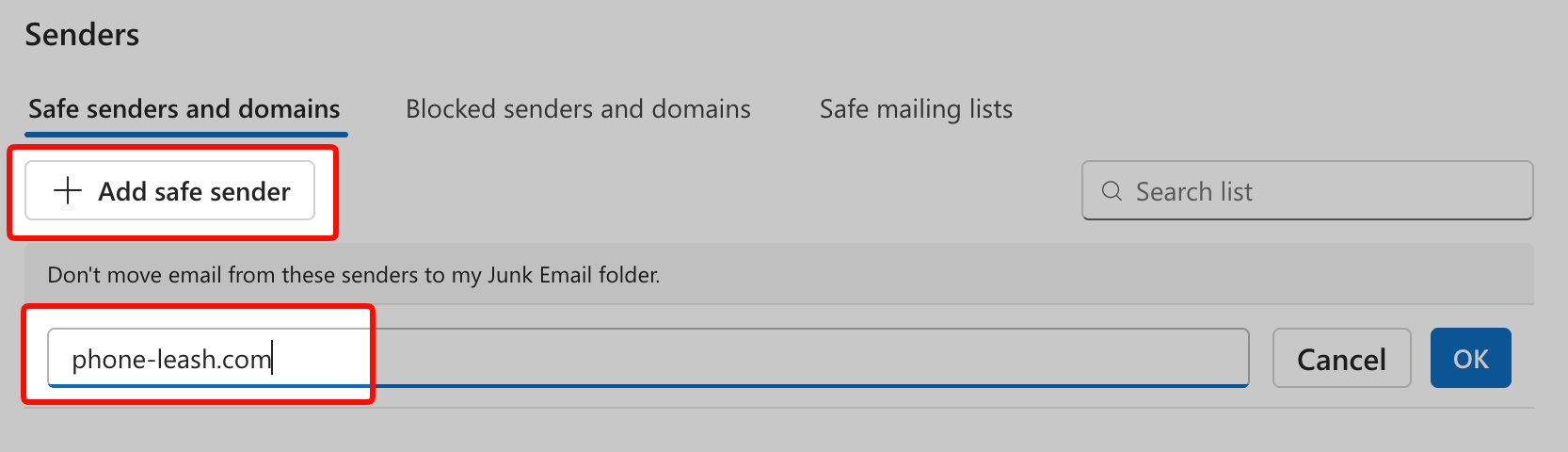
- Under Safe senders and domains, click Add.
- Type phone-leash.com and press Enter.
- Click Save.
Tip: If you use the Outlook desktop app, go to Home → Junk → Junk E-mail Options → Safe Senders tab, then add phone-leash.com.
See also: Forwarding to an email address | It's not working